
Restablir un llapis USB utilitzant Windows
Suprimir Tails des del llapis USB
Primer, suprimiu Tails del llapis USB:
Select the Start
 button and open the Settings app.
In the Settings app, choose System ▸ Storage ▸ Advanced storage settings ▸ Disk & volumes.
Plug in the Tails USB stick that you want to reset.
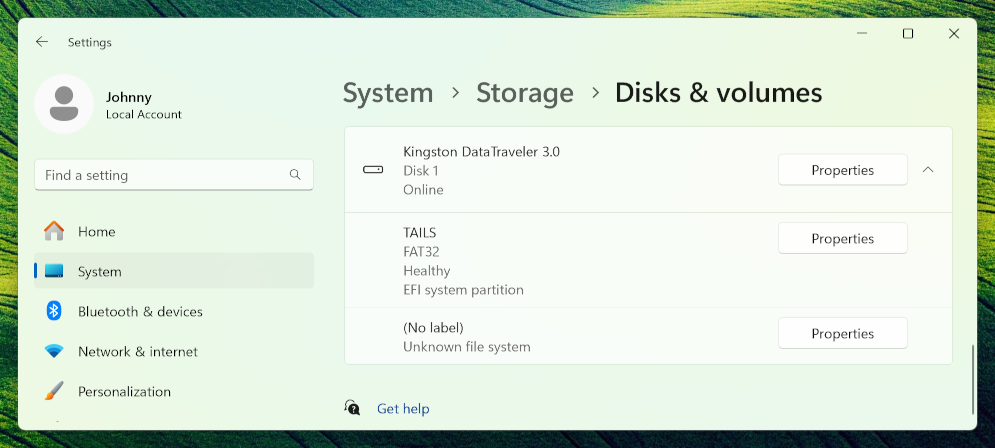
Identify the USB stick in the list of disks.
Identify the volume called TAILS, which has a FAT32 file system.
This volume corresponds to the Tails system partition on the USB stick.
Select the Properties button corresponding to the TAILS volume.
In the properties of the TAILS volume, select Delete.
Windows gives no feedback after deletion.
Select Disks & volumes to go back to the list of volumes.
If there is a Persistent Storage on the USB stick, a volume called (No label) also appears on the USB stick.
This volume corresponds to the Tails Persistent Storage on the USB stick.
Select the Properties button corresponding to the (No label) volume.
In the properties of the (No label) volume, select Delete.
Windows gives no feedback after deletion.
Select Disks & volumes to go back to the list of volumes.
The USB stick now has no volumes and is entirely unallocated.
Creeu una nova partició al llapis USB
A continuació, creeu una nova partició al llapis USB:
Select the Properties button corresponding to the USB stick.
In the properties of the USB stick, select Convert to MBR.
Select Disks & volumes to go back to the list of volumes.
Select the Create Volume button for the USB stick and choose Create Simple Volume.
In the New Volume dialog, enter a label of your choice and select Format.
Desconnecteu el llapis USB.
Close the Settings app.
Select the Start
button and open the File Explorer app.Plug back the USB stick.
Your new volume appears in the left sidebar of the File Explorer.